Managing import flows
Register an import job
To register an import job, contact Future Ordering support and provide the following information:
- Endpoint URL — The HTTP endpoint Future Ordering should call when the job runs.
- Entity type — What is being imported (e.g. menus or stores).
- Description — A brief description of what the job does.
- Timeout — How long the job is expected to take at most.
- Authentication details — How Future Ordering should authenticate when calling your endpoint (e.g. Basic auth credentials).
- Configuration (optional) — Any static configuration your endpoint needs with each call.
Future Ordering will set up the flow and add your job to it. If a flow for the entity type already exists, your job will be added as an additional step.
Run and monitor imports in Navigator
Once configured, run and monitor imports from the Orchestrator application in Navigator.
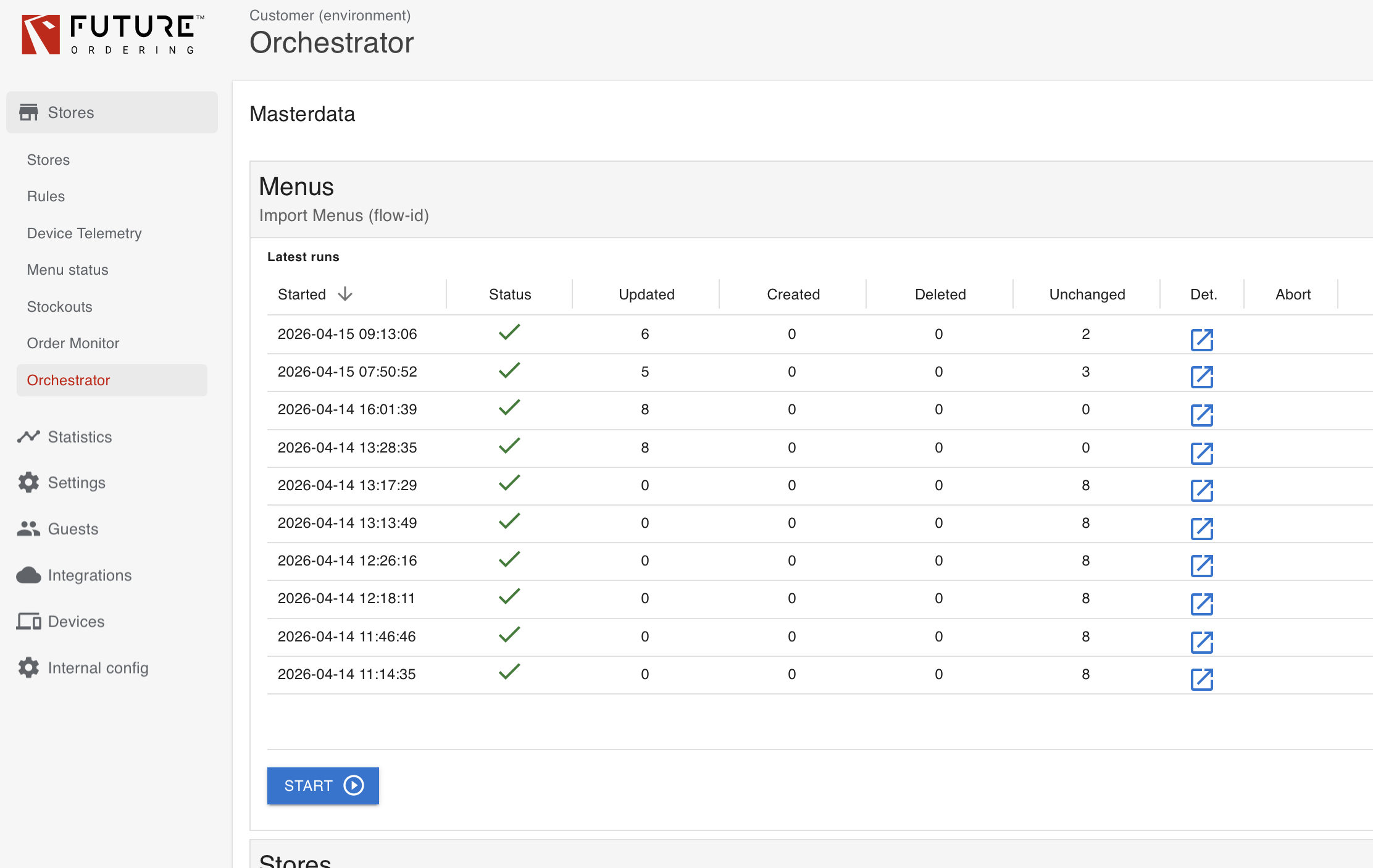
Start a run
To start a run, press the Start button for the import flow you want to run.
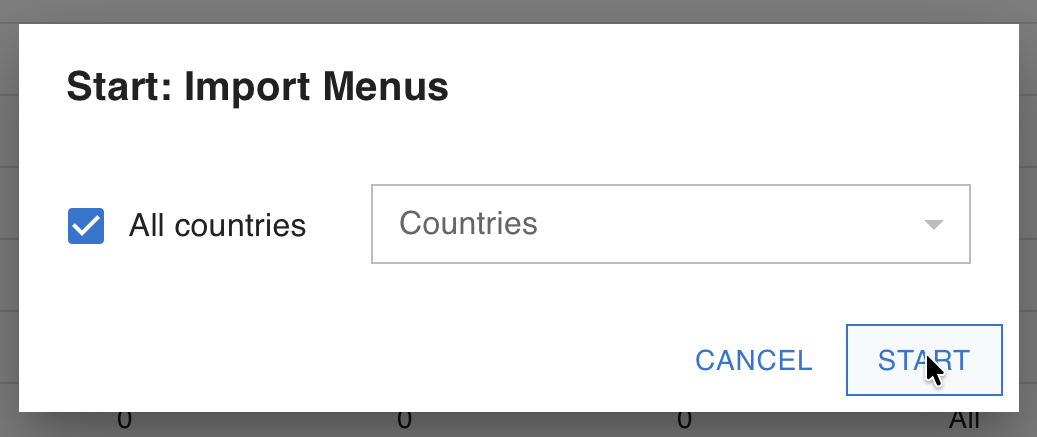
A flow can be configured to require run-specific input, e.g. for which country menus should be imported. In such cases, the application will display a prompt before starting the run.
Monitor a run
The initial view shows previous and active runs for all flows. A progress bar in the status column indicates that a run is in progress.
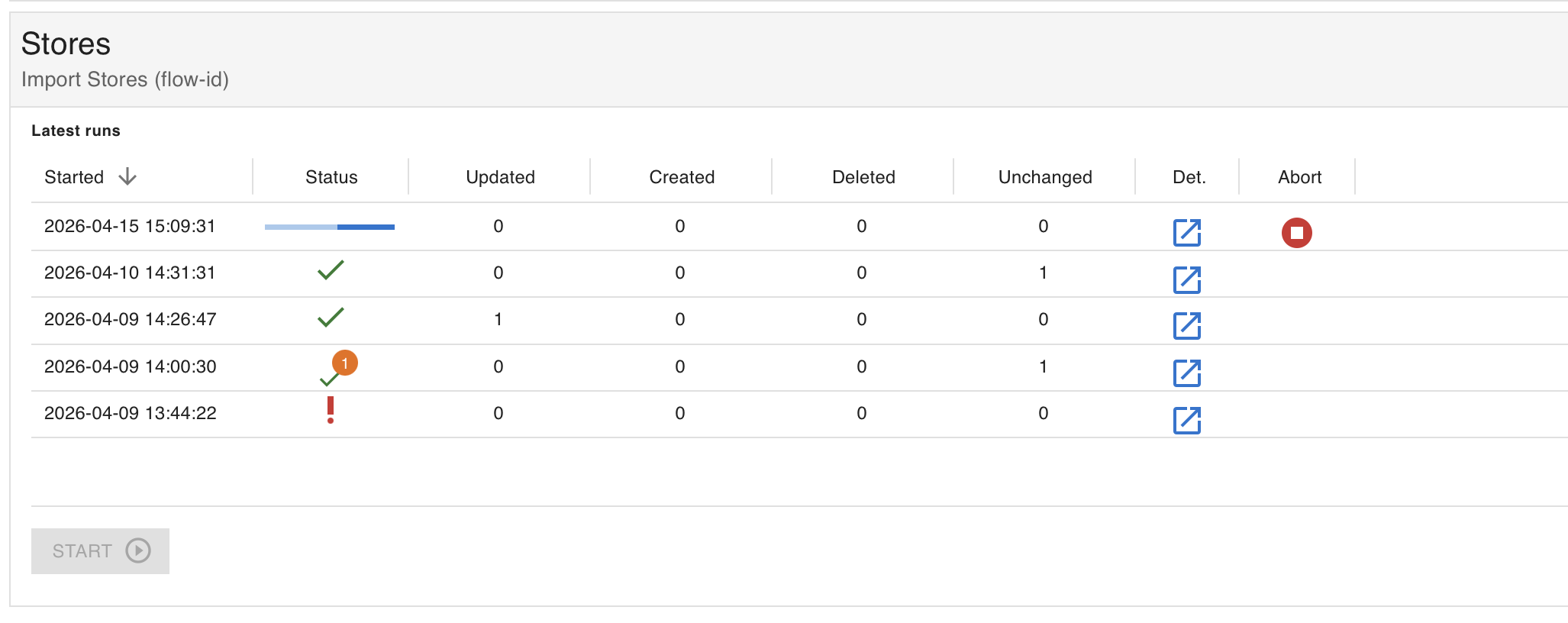
Aborting a run stops the flow from progressing to the next job. It does not immediately abort the currently running job.